> ## Documentation Index
> Fetch the complete documentation index at: https://docs.commerce.jolly.dev/llms.txt
> Use this file to discover all available pages before exploring further.
# Connect Amazon Business to Rye
Now that the Amazon Business account has been configured, the last step is updating the developer console with the account’s details.
1. Navigate to [console.commerce.jolly.dev/account](https://console.commerce.jolly.dev/account)
* If you have not connected your account, click the `Connect` button.
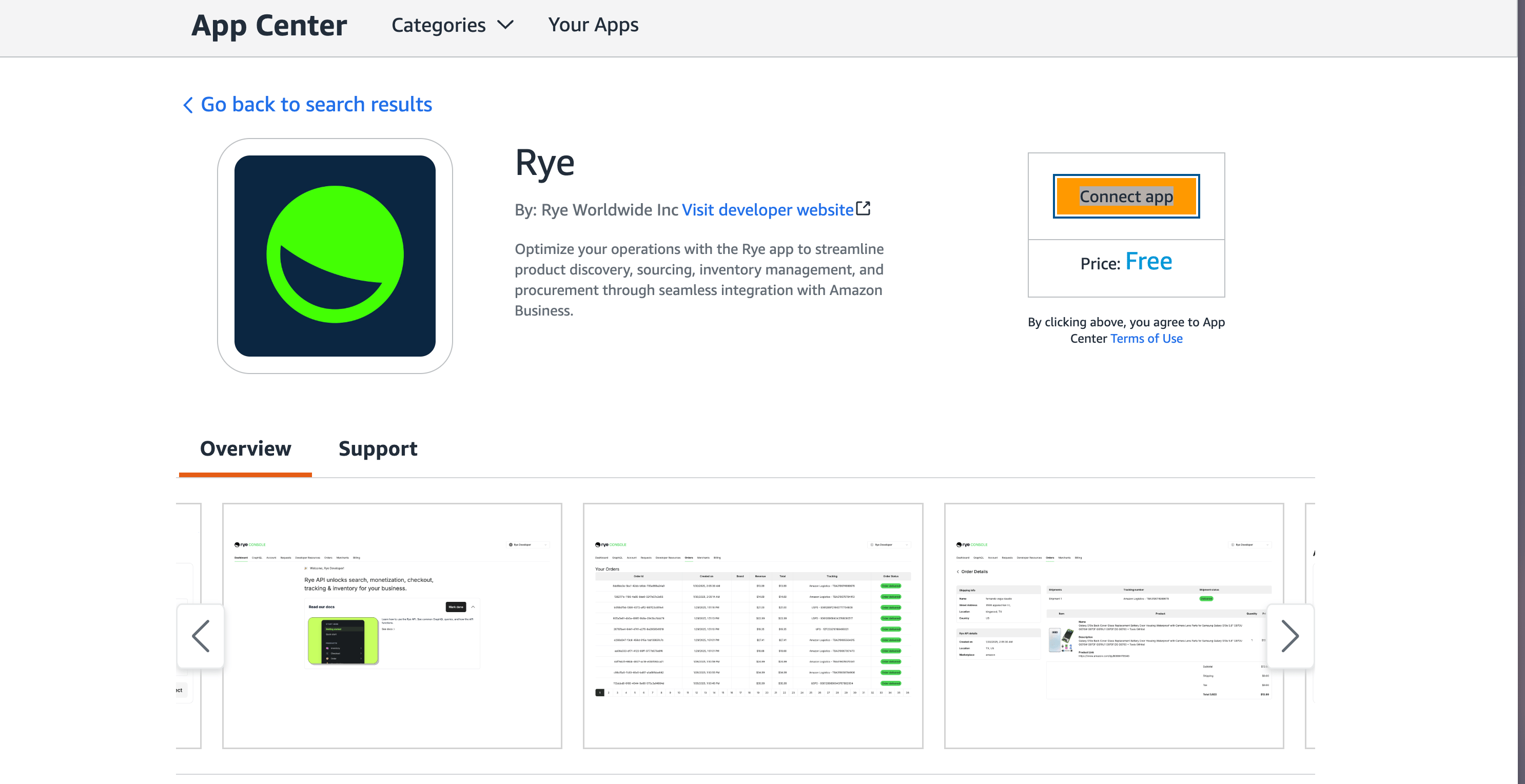
* You will be taken to the App page on Amazon. Click `Connect app` and follow the OAuth flow.
 2. Scroll to the `Amazon Business` section
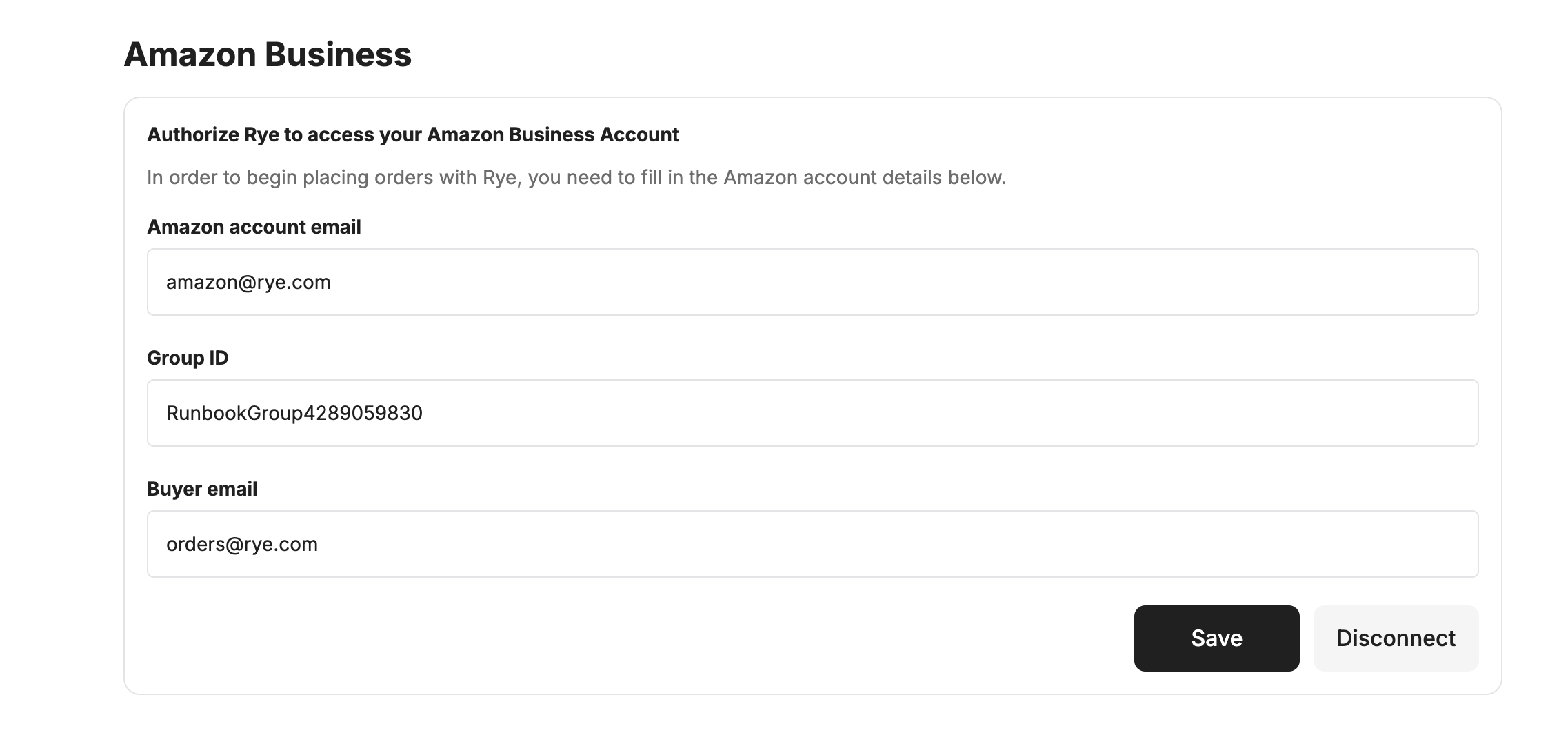
* Fill in the details and click the `Save` button.
* `Amazon account email` is the email address of the Amazon business account you created and configured
* `GroupId` is the id of the purchasing system you configured
* `Buyer email` is the email address of the user you added to your group
2. Scroll to the `Amazon Business` section
* Fill in the details and click the `Save` button.
* `Amazon account email` is the email address of the Amazon business account you created and configured
* `GroupId` is the id of the purchasing system you configured
* `Buyer email` is the email address of the user you added to your group
 3. Now everything is configured and ready
This documentation is built and hosted on [Mintlify](https://mintlify.com), a developer documentation platform.
3. Now everything is configured and ready
This documentation is built and hosted on [Mintlify](https://mintlify.com), a developer documentation platform.