> ## Documentation Index
> Fetch the complete documentation index at: https://docs.commerce.jolly.dev/llms.txt
> Use this file to discover all available pages before exploring further.
# Create a Test Store
> Set up a Shopify development store to test the full order lifecycle through Rye.
### Part 1: Set Up a Shopify Store with a Test Product
1. Log in/Create your Shopify account on [Shopify Partners](https://partners.shopify.com).
2. Click on "Add store" -> "Create development store"
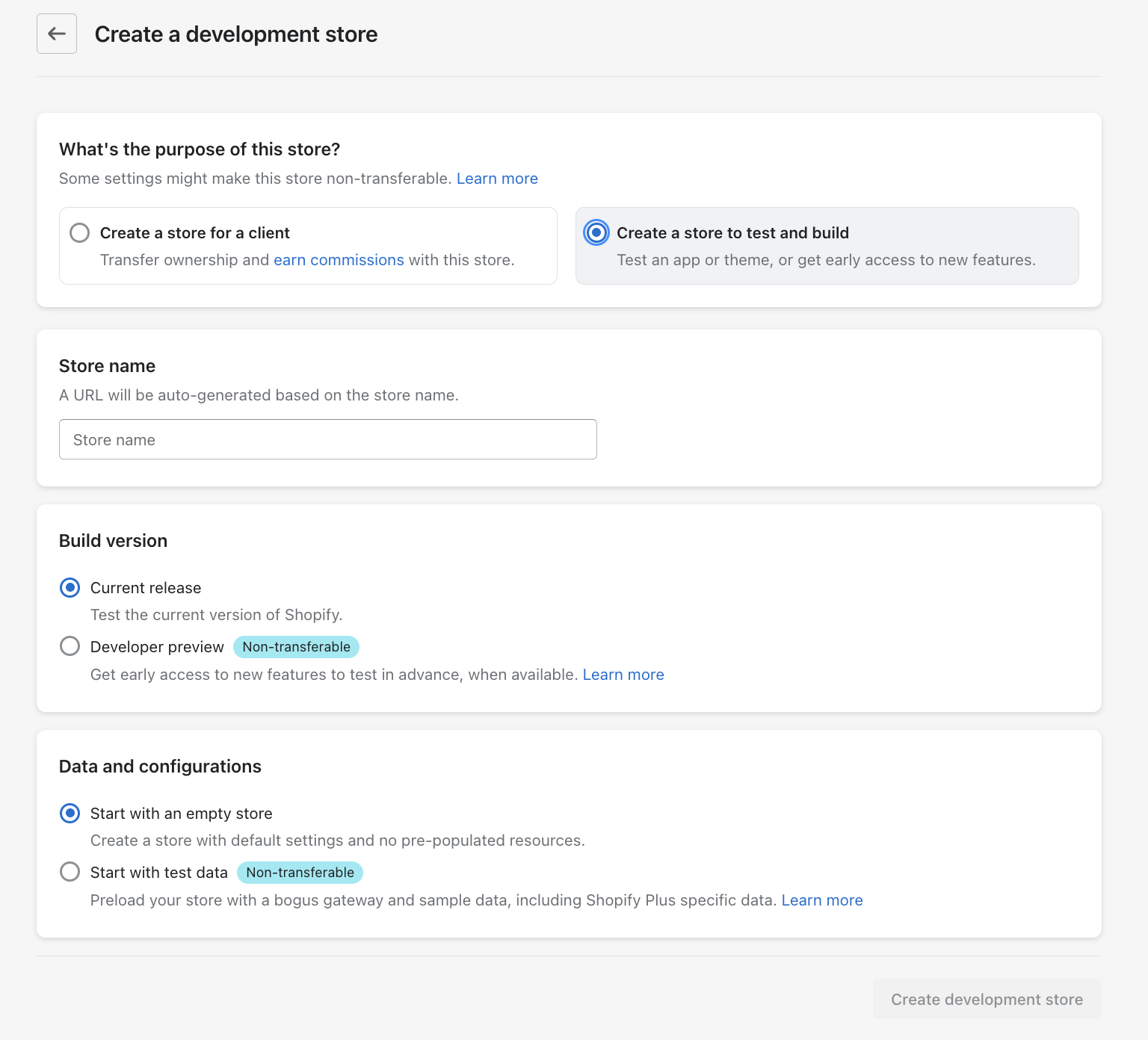
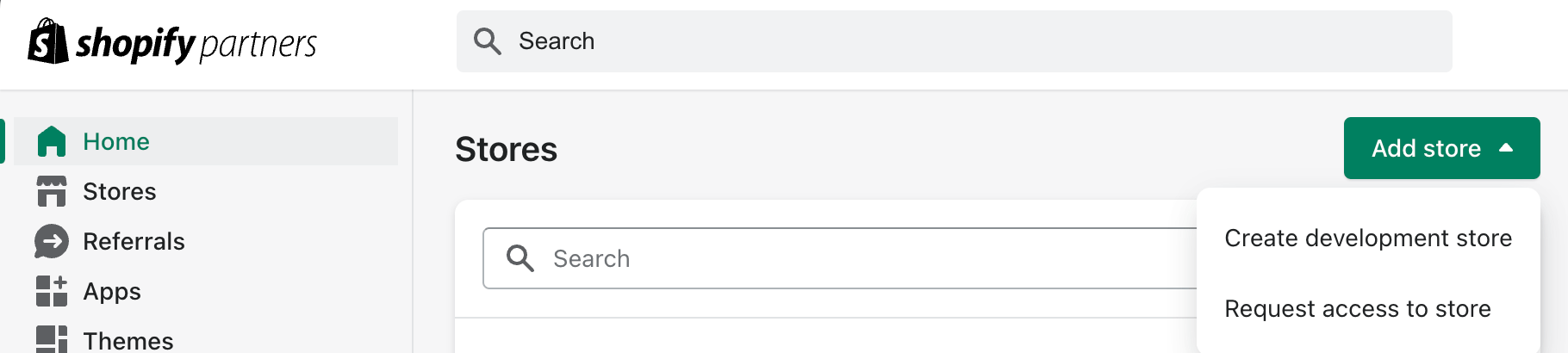 3. Select the "Create a store to test and build" option and fill out the details.
* Click on "Start with test data" if you'd like to start with some pre-filled products to your store.
* Once that's complete, click on "Create development store".
3. Select the "Create a store to test and build" option and fill out the details.
* Click on "Start with test data" if you'd like to start with some pre-filled products to your store.
* Once that's complete, click on "Create development store".
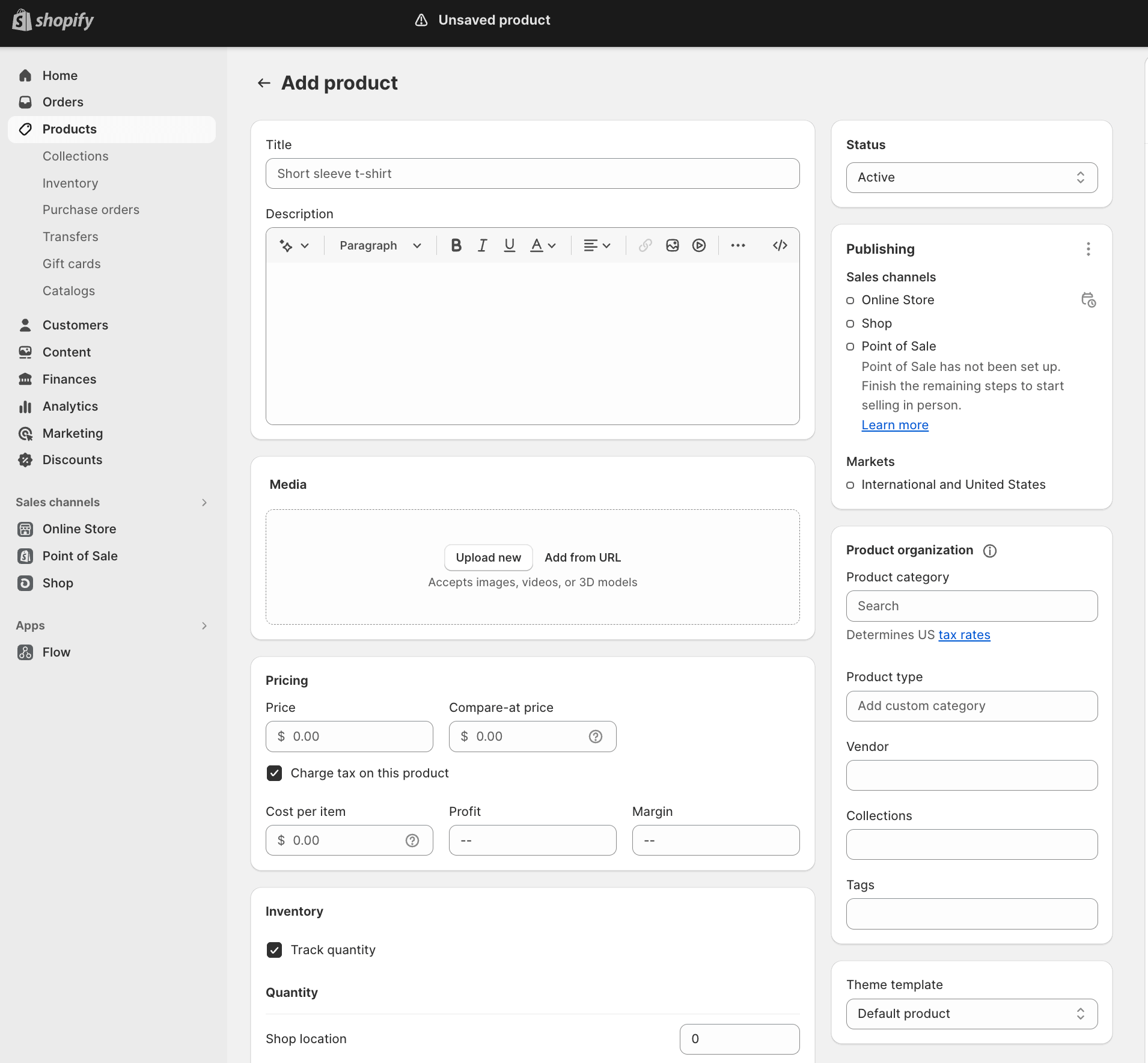
 4. Now to add your own product:
* Go to "Products" -> "Add your products"
* Fill out the product details
* Click on "Save"
4. Now to add your own product:
* Go to "Products" -> "Add your products"
* Fill out the product details
* Click on "Save"
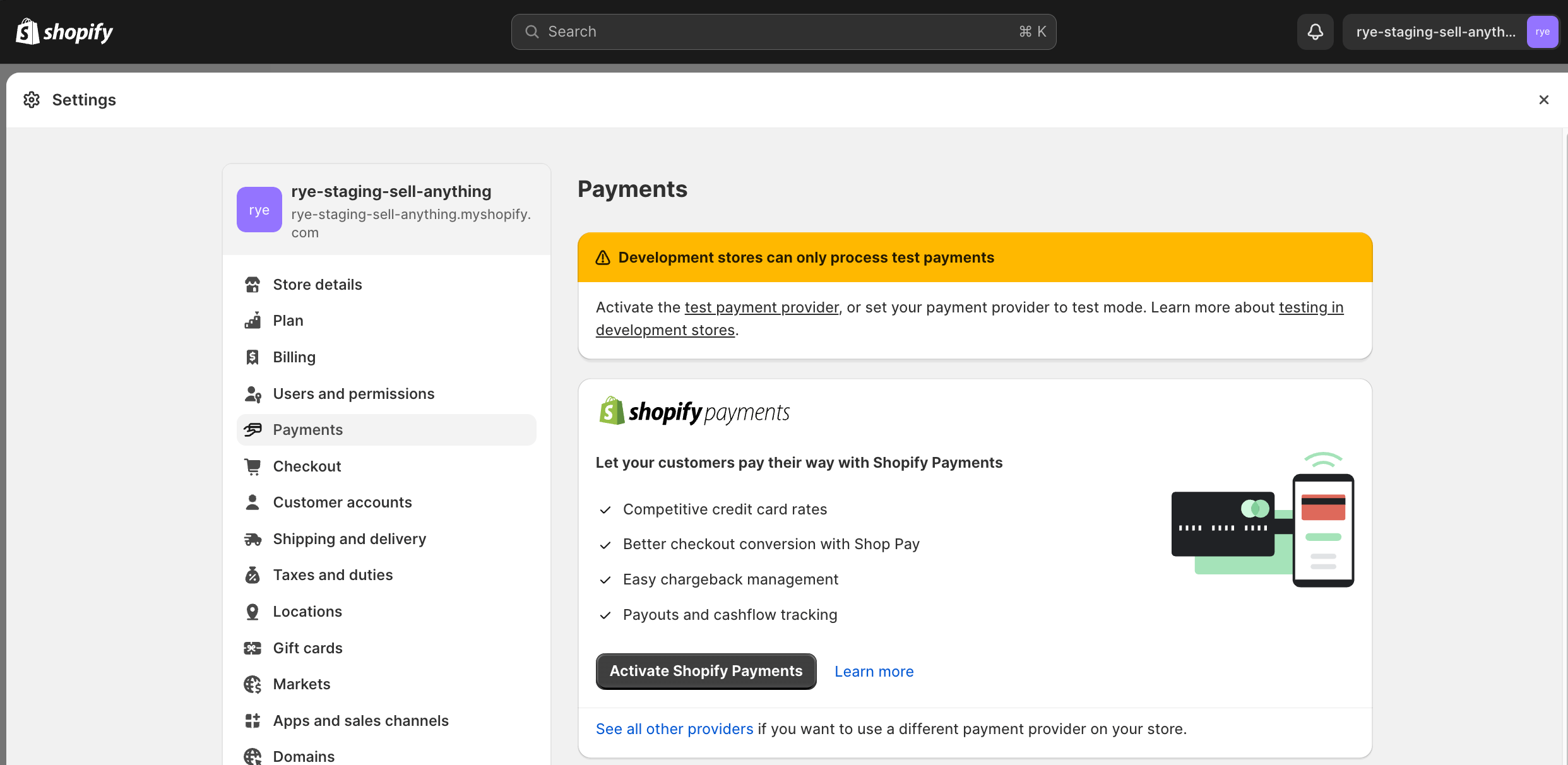
 5. Now to set up test payments:
* Click on "Settings" (on the bottom left of the page)
* Go to "Payments" -> "Activate Shopify Payments"
*
5. Now to set up test payments:
* Click on "Settings" (on the bottom left of the page)
* Go to "Payments" -> "Activate Shopify Payments"
*  * Fill out the Address details and click on "Next"
* Under the "Submit information about your business", click on "Submit details"
*
* Fill out the Address details and click on "Next"
* Under the "Submit information about your business", click on "Submit details"
* 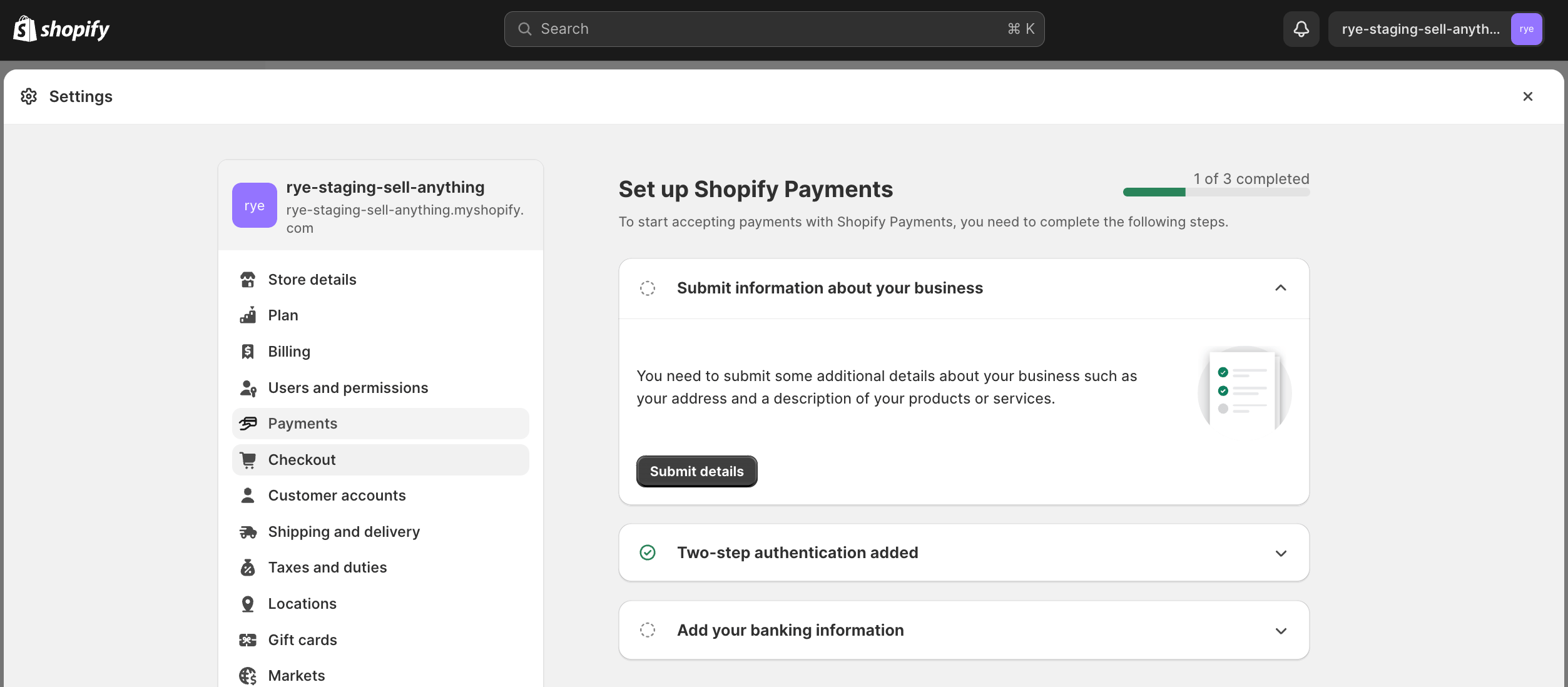 * Fill in the information and click on "Submit for verification"
6. In Payments Enable Shopify Payments by clicking "Switch to Shopify Payments" -> "Activate Shopify Payment"
* Fill in the information and click on "Submit for verification"
6. In Payments Enable Shopify Payments by clicking "Switch to Shopify Payments" -> "Activate Shopify Payment"
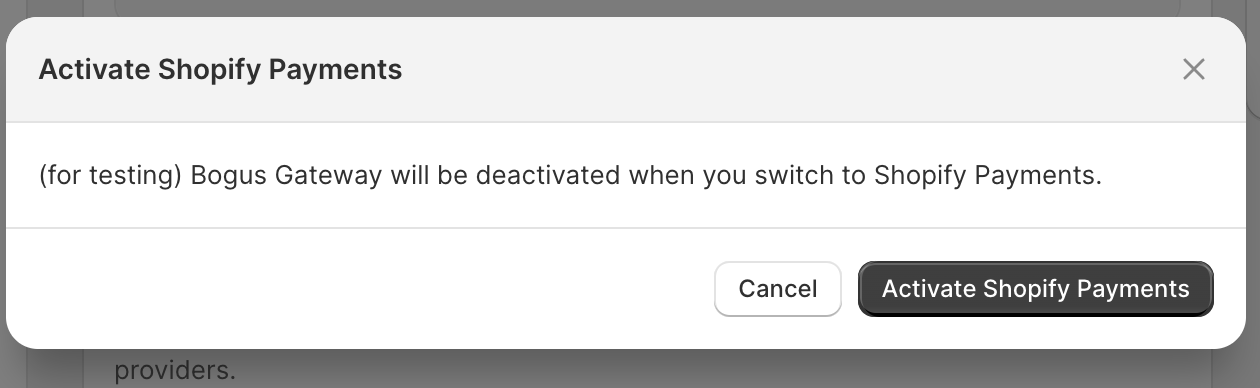 7. Fill in the required information in order to enable Shopify Payments.
8. Enable Test Mode for Shopify Payments
* Click "Manage" on the Shopify Payments section
7. Fill in the required information in order to enable Shopify Payments.
8. Enable Test Mode for Shopify Payments
* Click "Manage" on the Shopify Payments section
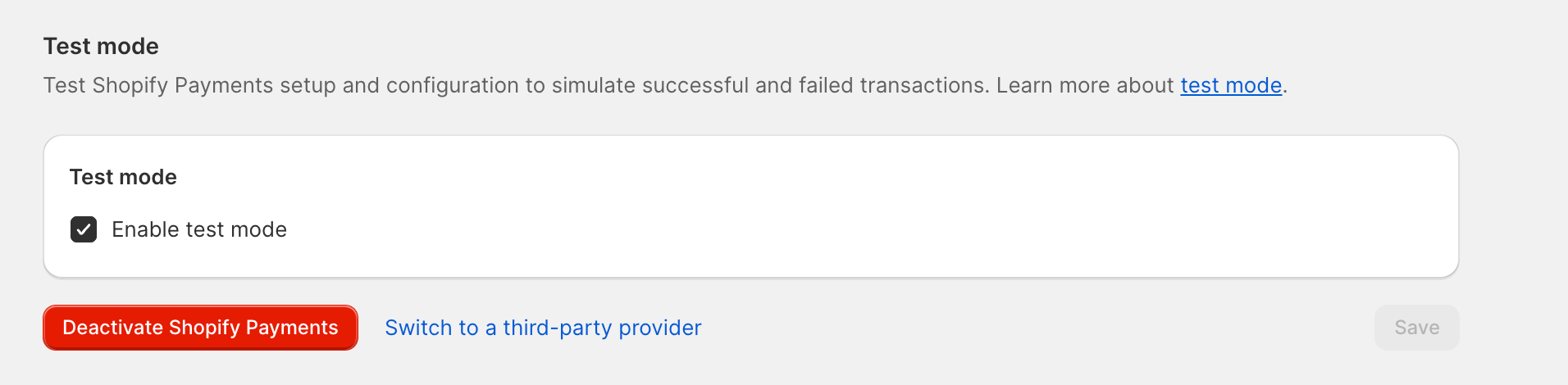
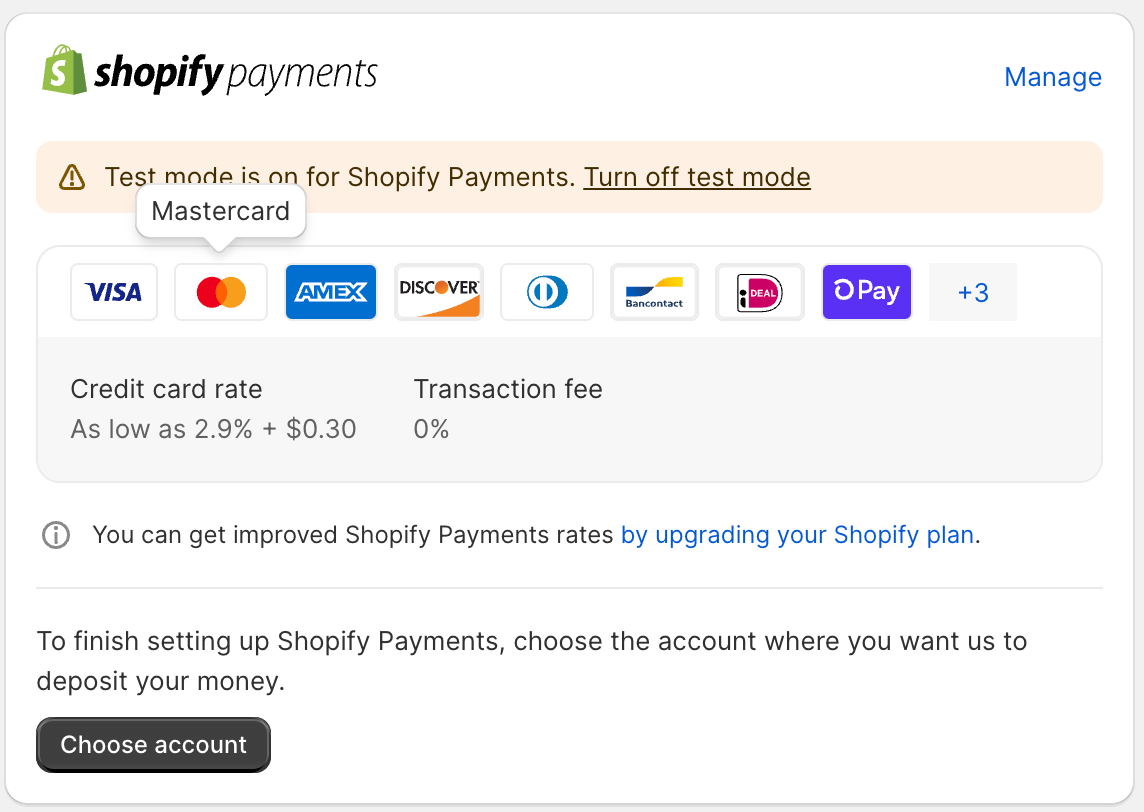 * Scroll to the bottom of the next screen and check "Enable test mode" and click "Save"
 9. Publish your Shopify store to remove the password and test the API
### Part 2: Send a Test Order from Rye to the Shopify Store
1. Follow [the Quickstart guide](/api-v2-experimental/example-flows/simple-checkout), then copy the URL of a product from your Shopify store. Use that product URL in your integration to run a test checkout. This will let you place an order and confirm how it flows through the system, including how it appears from the merchant’s side.
This documentation is built and hosted on [Mintlify](https://mintlify.com), a developer documentation platform.
9. Publish your Shopify store to remove the password and test the API
### Part 2: Send a Test Order from Rye to the Shopify Store
1. Follow [the Quickstart guide](/api-v2-experimental/example-flows/simple-checkout), then copy the URL of a product from your Shopify store. Use that product URL in your integration to run a test checkout. This will let you place an order and confirm how it flows through the system, including how it appears from the merchant’s side.
This documentation is built and hosted on [Mintlify](https://mintlify.com), a developer documentation platform.